
Setting Table Descriptions using SQL Server Management Studio
Generally, to help others understand the purpose and structure of a table, we set descriptions for our tables. This not only helps in documenting the database structure but also supports development tools in generating Table Schema documentation.
While column descriptions can be edited in the design view, table descriptions might not seem obvious at first glance. However, they can still be configured. Here is how to do it.
Setting via SSMS
- In SQL Server Management Studio (SSMS), right-click the target table and select "Properties".
- In the "Properties" window, go to the "Extended Properties" page, add a property named
MS_Description, and enter the table description.
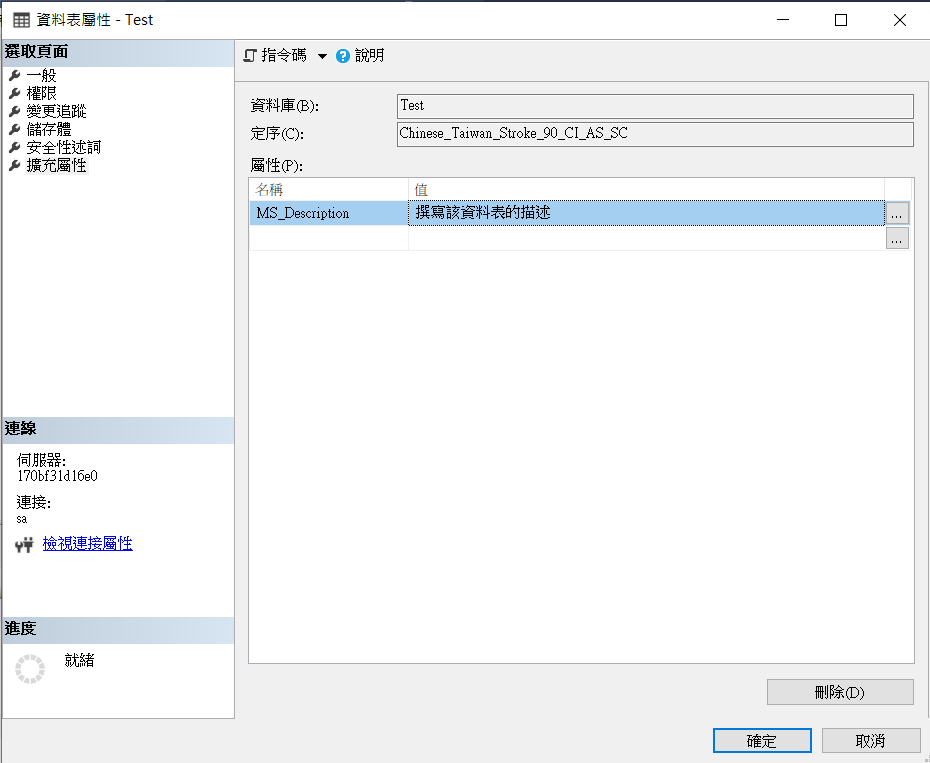
WARNING
Clicking the three-dot button next to the field will open a UI window for multi-line editing. If you are using Entity Framework reverse engineering, please avoid using multi-line descriptions to prevent the generation of code that fails to compile.
2024-08-23
I suddenly discovered that you can edit the table description directly in the properties window of the table designer, as shown in the image below. No wonder I remembered that setting table descriptions wasn't that complicated in the past...
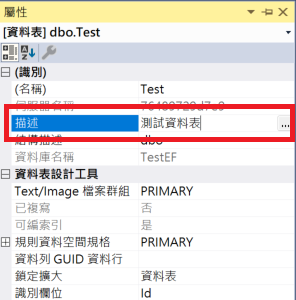
Editing via SQL Syntax
You can set or modify table descriptions using the following SQL syntax:
Adding a Table Description
EXECUTE sp_addextendedproperty @name = N'MS_Description', @value = N'{Table Description}', @level0type = N'SCHEMA', @level0name = N'dbo', @level1type = N'TABLE', @level1name = N'{Table Name}';Modifying a Table Description
EXECUTE sp_updateextendedproperty @name = N'MS_Description', @value = N'{Table Description}', @level0type = N'SCHEMA', @level0name = N'dbo', @level1type = N'TABLE', @level1name = N'{Table Name}';Change Log
- 2024-07-15 Initial documentation created.
- 2024-08-23 Added a second method for setting descriptions in SSMS.